Communications List
After triage, conversations land in the Communications inbox. This is where team members do their actual work — reading messages, composing replies, and resolving conversations.
Page Structure
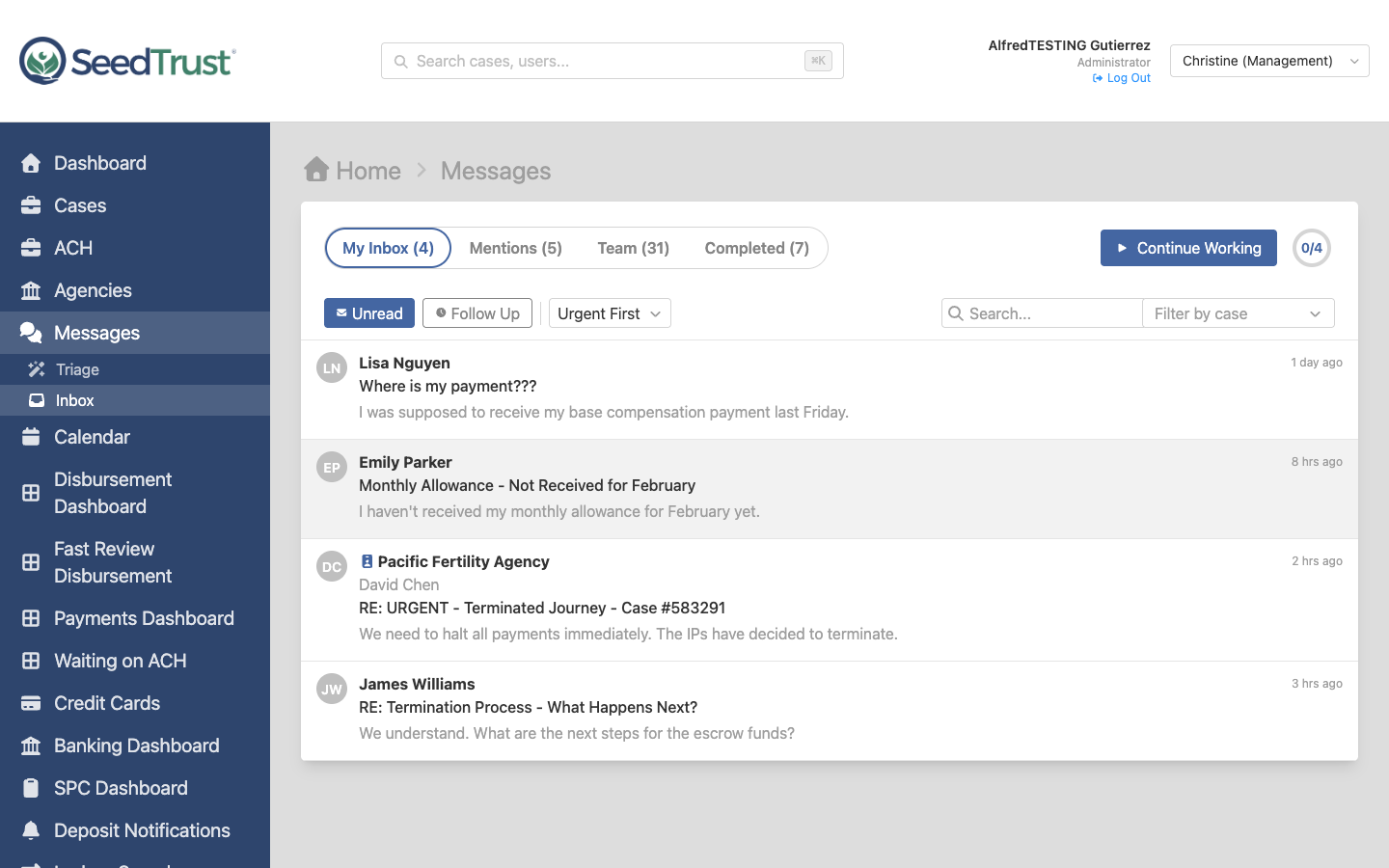
Section titled “Page Structure”The list page uses a breadcrumb navigation (Home > Messages) above a full-width content card. The card contains:
- Tab bar with pill-style tabs and a “Continue Working” button (My Inbox only)
- Toolbar with quick filter chips, sort dropdown, search, and case filter
- Conversation list — scrollable rows
The inbox is organized into four tabs, each showing a count:
My Inbox
Section titled “My Inbox”Shows conversations assigned to the current user that aren’t completed. This is the primary work queue.
- Quick filter chips — toggle between “Unread” and “Follow Up” to narrow the view
- Sort options — Urgent First (default), Newest, Longest Waiting
- Search — full-text search across sender, subject, and preview
- Case filter — searchable dropdown to filter by a specific escrow case, with a clear button
The “Continue Working” button (blue, with play icon) appears to the right of the tabs. It navigates directly to the highest-priority conversation needing a reply. A circular progress indicator beside it shows “X of Y handled today.”
Mentions
Section titled “Mentions”Shows conversations where the current user has been @mentioned in an internal note — even if they’re not assigned to the conversation. This serves as a passive notification system:
- Unseen mentions are highlighted with a subtle blue background
- The tab shows a count of unseen mentions: “Mentions (3)”
- Each mention row shows the subject, the mentioner’s name, the note text, and assignment info
- Clicking a mention marks it as seen and navigates to the conversation
This is especially important when a team member needs help from a colleague who isn’t assigned to the conversation.
A team health dashboard showing all open conversations in a master-detail layout.
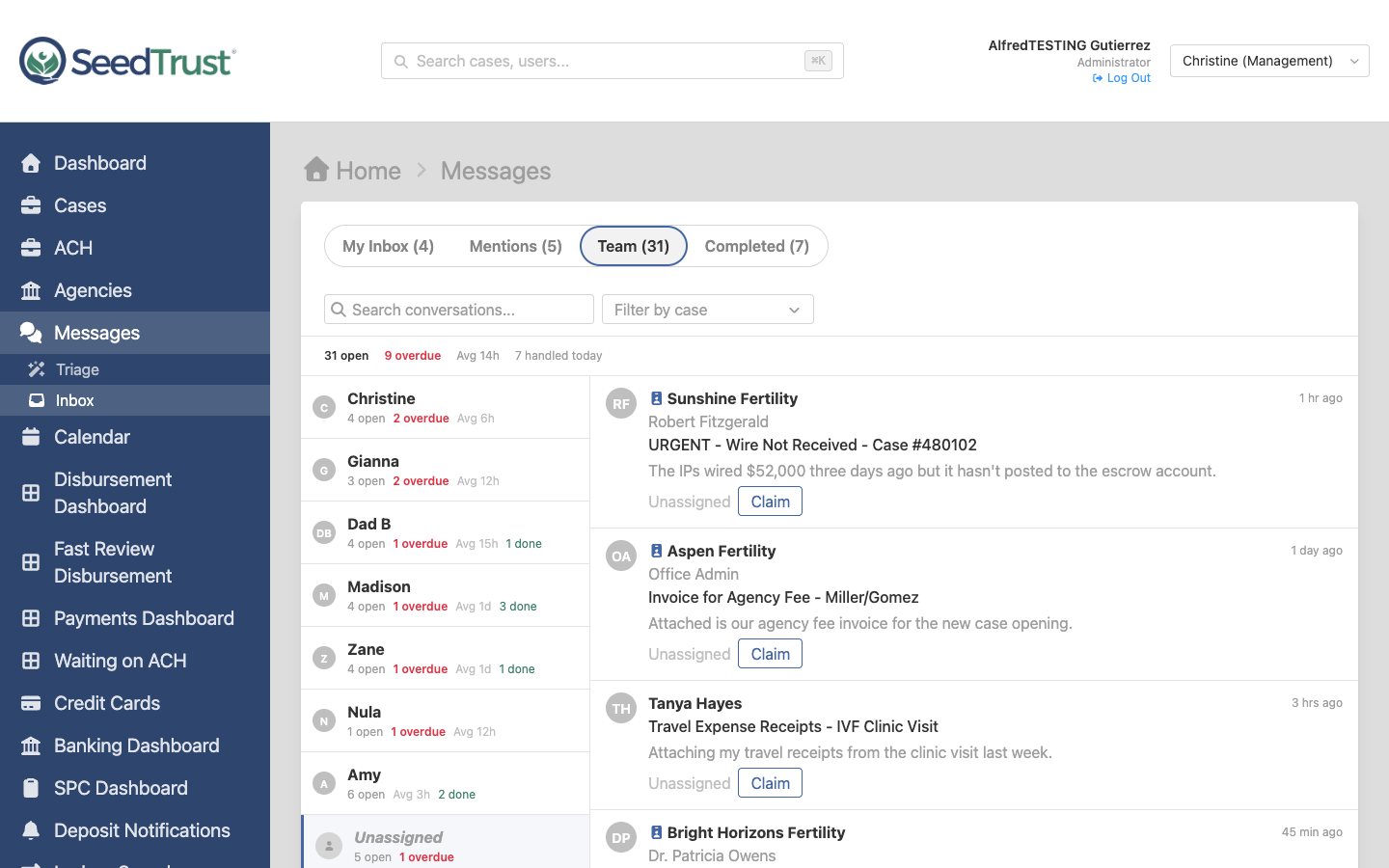
Summary bar — a top-level stats bar shows aggregated team totals: open count, overdue count, average response time, and conversations handled today.
Left sidebar (300px) — lists each team member as a card with per-person stats:
| Metric | Description |
|---|---|
| Open count | Number of active conversations |
| Overdue count | Conversations past response SLA (shown in red, only when > 0) |
| Avg response time | Average time to first reply |
| Done today | Completed conversations count (only when > 0) |
Members are sorted by overdue count (most first), then by open count, then alphabetically. Unassigned conversations always appear at the bottom of the list with a generic user icon instead of initials.
Right panel — selecting a person shows their conversations. Unassigned conversations show a “Claim” button on each row so any team member can self-assign directly from the team view.
Completed
Section titled “Completed”Shows resolved conversations sorted by completion time. Useful for reviewing past work or reopening conversations if needed.
Conversation Rows
Section titled “Conversation Rows”Each row in the list shows:
- Avatar with sender initials
- Sender name (or agency name with badge icon for organizations, with sender name on a second line)
- Subject line (medium weight when unread)
- Preview text — first line of the message
- Timestamp — relative time (e.g., “2 hrs ago”)
- Assignment indicator (outside My Inbox) — a team icon followed by “Team > Person” in neutral text, or “Unassigned” when no one is assigned
Clicking a row navigates to the full conversation detail.
Queue Flow
Section titled “Queue Flow”The “Continue Working” button navigates directly to the next conversation that needs a reply. Combined with auto-advance after completing a conversation, this creates a continuous workflow:
- Click “Continue Working”
- Read message, compose reply
- Send & Complete (or Mark Complete after tasks)
- Auto-advance to next conversation
- Repeat until inbox is clear
A progress indicator shows “X of Y handled today” — providing visible momentum.