Triage Queue
The triage queue is the entry point for all incoming communications that cannot be automatically routed. Emails from known agencies are auto-routed to their assigned team and person — only unidentifiable messages (no known agency domain, no case number in the body) appear in the triage queue.
What Lands in Triage?
Section titled “What Lands in Triage?”Not every email goes through triage. The system uses two routing paths:
- Known agency emails — matched by sender domain (e.g.,
@hatchfertility.com), auto-routed directly to the assigned team and person. These skip triage entirely. - Unidentifiable emails — no agency match, no case number in the body. These require a human to determine where they belong.
If an email mentions a case number in its body, the system can match it automatically and route to the inbox — it never enters triage.
Queue Layout
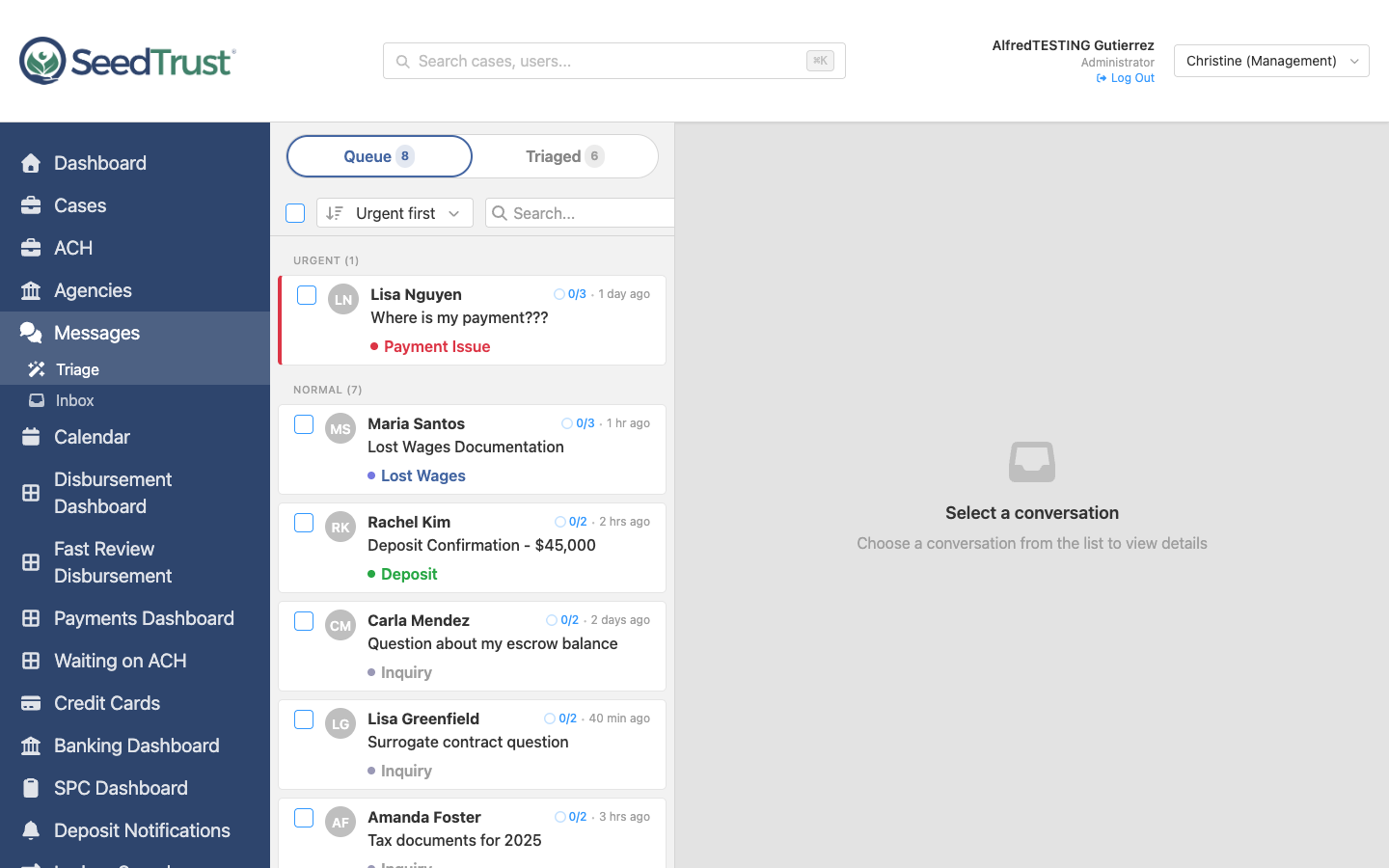
Section titled “Queue Layout”The triage page uses a two-panel layout:
- Left panel (420px) — scrollable list of unprocessed conversations with search and sort
- Right panel — selected conversation’s full message with AI-assisted assignment controls
Conversation Cards
Section titled “Conversation Cards”Each card shows:
- Sender name and avatar
- Subject line
- Tag badges (dot style) — e.g., “Lost Wages”, “Deposit”, “Payment Issue”
- Task progress indicator (e.g., 0/3)
- Timestamp
- Assignment indicator when self-assigned (team → person format)
Urgency Sections
Section titled “Urgency Sections”When sorted by urgency (the default), the queue groups items with left-aligned section headers:
- URGENT (n) — messages flagged as time-sensitive
- NORMAL (n) — standard priority
AI Confidence Scores
Section titled “AI Confidence Scores”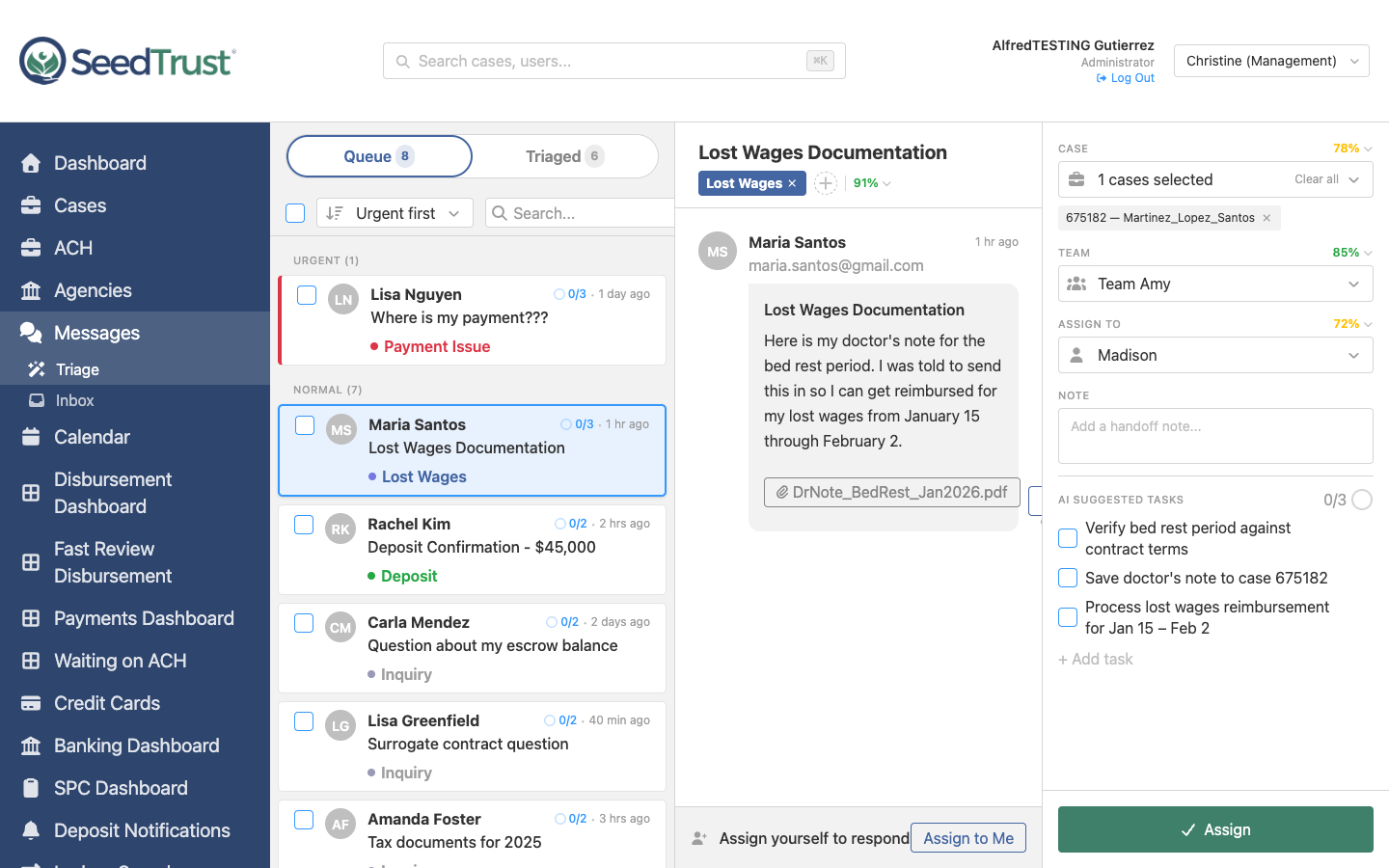
The AI analyzes each message and provides suggestions with confidence scores for three assignment fields:
- Case — which escrow case this message relates to
- Team — which team should handle it
- Assign To — which person on that team
Each field shows a color-coded percentage next to its label:
| Score | Color | Meaning |
|---|---|---|
| 80%+ | Green | High confidence — likely correct |
| 50-79% | Yellow | Moderate confidence — review suggested |
| Below 50% | Red | Low confidence — manual review needed |
Expandable Reasoning
Section titled “Expandable Reasoning”Clicking a confidence score expands an AI reasoning panel below the field. The panel background tints to match the confidence color (light green, light yellow, or light red) and shows bullet points explaining why the AI made its suggestion — for example:
- “Sender name matches GC on case”
- “Team handles 73% of lost wages requests”
- “No case number in subject or body”
Tag & Urgency Reasoning
Section titled “Tag & Urgency Reasoning”Tags and urgency detection also have confidence scores. A single expandable panel in the message header shows:
- Urgency Detection — why the AI flagged (or didn’t flag) the message as urgent
- Tag Classification — why specific tags were suggested (e.g., “Lost Wages”, “Deposit”)
Assignment Controls
Section titled “Assignment Controls”When a conversation is selected, the right panel shows:
- Case — searchable multi-select, pre-filled with AI suggestion
- Team — dropdown, pre-filled with AI suggestion
- Assign To — dropdown filtered by selected team, pre-filled with AI suggestion
- Note — optional handoff note
- AI Suggested Tasks — checkable task list generated from the email content
- Assign button — confirms and removes the conversation from the queue
Self-Assignment Flow
Section titled “Self-Assignment Flow”Instead of routing to someone else, a triage admin can handle the message themselves:
- Click “Assign to Me” in the self-assignment bar below the message
- The reply composer opens — type and send a response
- The Assign button is replaced with a Next button
- Clicking Next triages the message (assigns it with the admin as the person) and advances to the next conversation
- The left panel card shows the assignment: “Team → Person”
Save to Case (Attachments)
Section titled “Save to Case (Attachments)”Messages with attachments show a “Save to Case” dropdown:
- Click “Save to Case” and select a document type (Match Sheet, Medical Record, etc.)
- An inline rename field appears, pre-filled with the original filename
- If a case is already selected in the action panel, it auto-fills; otherwise a case search combobox appears
- Click Save to file the document, or Cancel to dismiss
Bulk Assignment
Section titled “Bulk Assignment”For high-volume periods, triage admins can select multiple conversations using checkboxes:
- Select-all checkbox in the toolbar
- The detail panel hides during bulk selection to maximize list space
- Team and person can be assigned to all selected at once
Triage Animation
Section titled “Triage Animation”When a conversation is assigned:
- The card flashes sky-blue
- Fades out over 350ms
- Height collapses over 250ms
- The next conversation auto-selects
Sort & Search
Section titled “Sort & Search”| Sort | Behavior |
|---|---|
| Urgent First | Urgent items at top, then newest |
| Oldest First | Longest-waiting conversations first |
| Newest First | Most recent conversations first |
A search field in the toolbar filters by subject, sender name, email, organization, and preview text.
Triaged History
Section titled “Triaged History”A “Triaged” tab shows recently processed conversations:
- Assignment (team → person)
- Auto-routed or manually triaged badge
- Timestamp
Keyboard Navigation
Section titled “Keyboard Navigation”| Key | Action |
|---|---|
j / k | Move focus up/down in the queue |
Enter | Select the focused conversation |
a | Jump to the Assign button |
Escape | Deselect current conversation |